
PRTG Manual: Service Level Agreements
On this page, you can see all your service level agreements (SLAs) and perform actions such as add, edit, and delete. You can also define your SLAs as inactive or set a company for them.
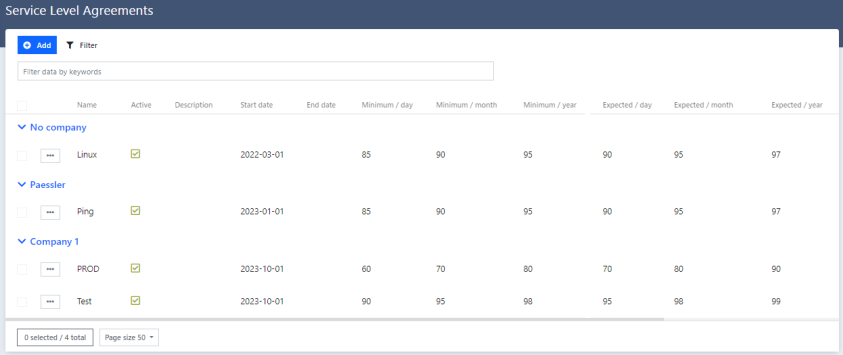
Service level agreements
Create a new SLA
1.To add an SLA, click  in the upper left corner of the page.
2.On the Configure SLA page, configure the SLA settings and click Next.
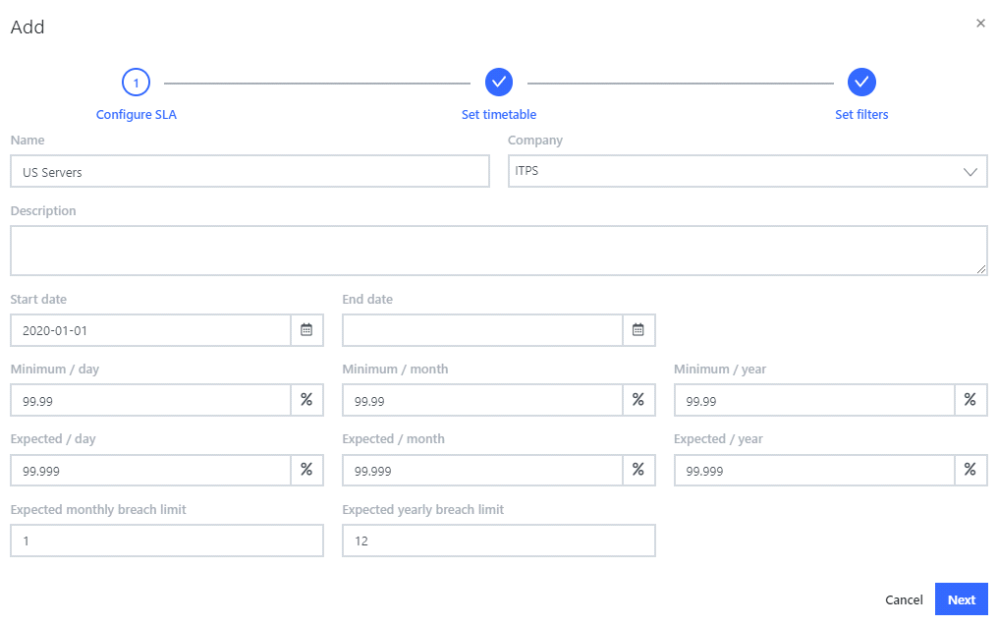
Configure a new SLA
Setting |
Description |
Name |
Enter a name for the SLA. This name is used in the graphical user interface (GUI) and in the PDF reports to identify the SLA. Example: Inside Business Hours [MO – FR] |
Company |
Enter the company associated with the SLA. You can group SLAs by company for reports.
|
Description |
Enter any necessary details regarding the SLA. |
Start Date End Date |
Define when the SLA starts and ends.
|
Minimum/day Minimum/month Minimum/year |
The minimum percentage of sensors in "OK" state for each time frame (day, month, year). Any value below this will mark the SLA as breached. |
Expected/day Expected/month Expected/year |
The expected percentage for each time frame (day, month, year).
|
Expected monthly breach limit Expected yearly breach limit |
The threshold that determines if the SLA is marked as breached for the month or for the year, even if the minimum percentage was not reached. Example: Minimum/month = 95% Expected/day = 98% Expected monthly breach limit = 3 If PRTG SLA Reporter detects 3 or more values below the Expected/day value (98%), the SLA will be marked as breached for the given month, even if the average percentage of availability is 98% (greater than the 95%, which is the minimum percentage configured). |
3.The Set timetable page will appear. Here, you can select all the days the configured SLA will be active. You can also enter the hourly input of each day. Click Next.
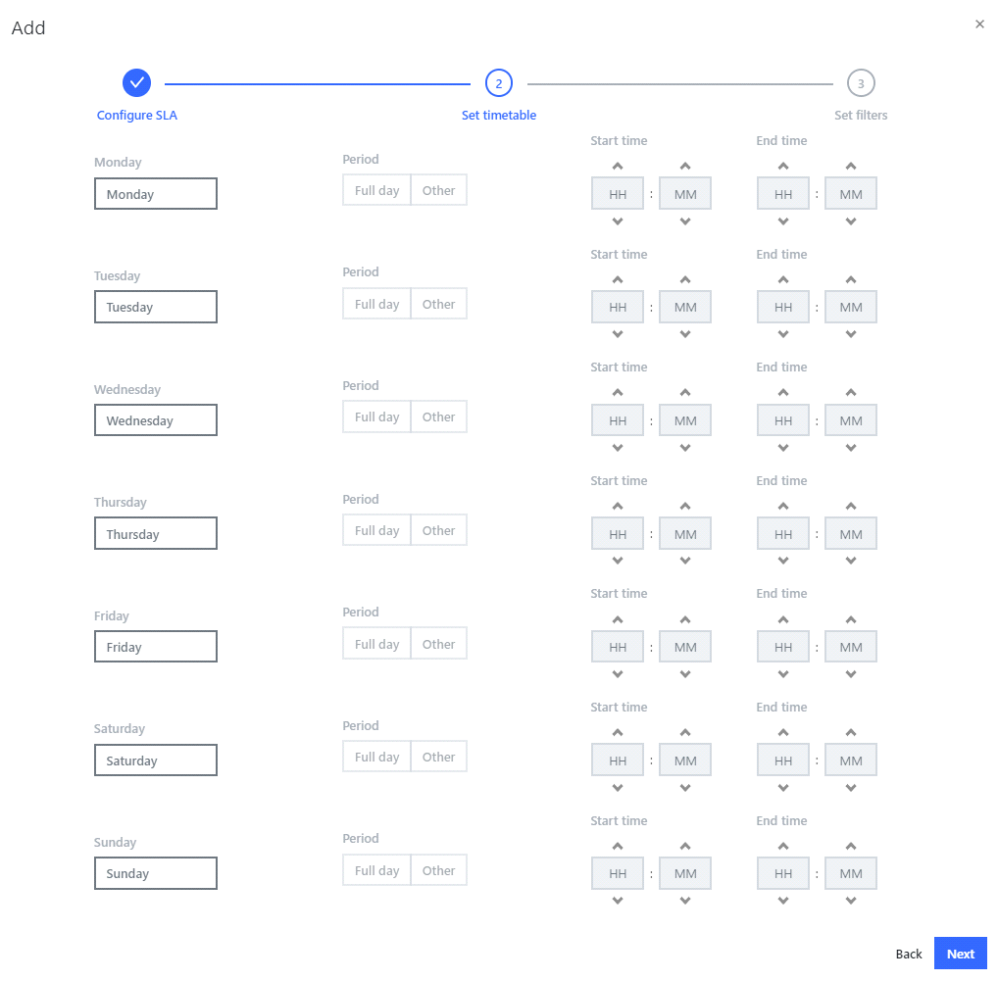
Set SLA timetable
4.Set the filter in order for the SLA to apply to the configured sensors.
 If there are no filters created, you can submit the SLA without selecting any. After creating the SLA, you can create a new filter on the Filters page and assign it to the SLA via the Configure option in the SLA options menu.
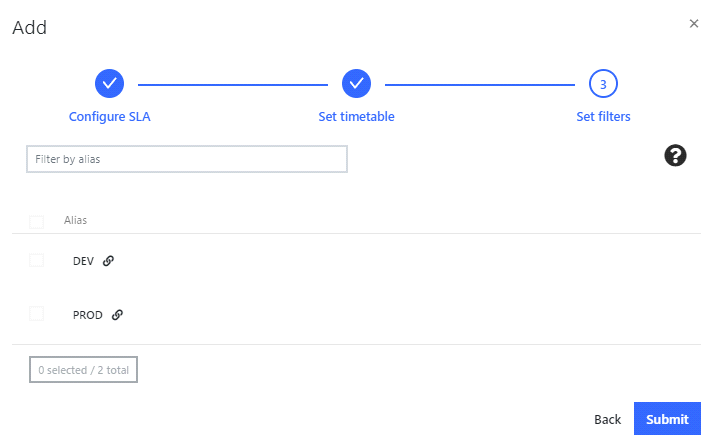
Assign filters
SLA options menu
After an SLA is created, you can modify it by selecting one of the following options in the menu:
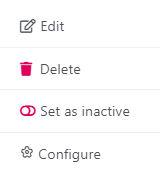
SLA options menu
Setting |
Description |
Edit |
Edit the SLA configuration, name, time periods, and thresholds. |
Delete |
Permanently remove the SLA and all the data associated with it, including the reports.
|
Set as inactive |
Deactivate the SLA. The data and previously created reports are saved, but new reports will not be created until you reactivate the SLA. |
Configure |
Configure all SLA details from one summary page. |
