
PRTG Manual: Scheduled reports
From the Scheduled reports page, you can generate reports for custom intervals and send them out to specific email address.
To create a new scheduled report, click Add from the upper left corner of the page:
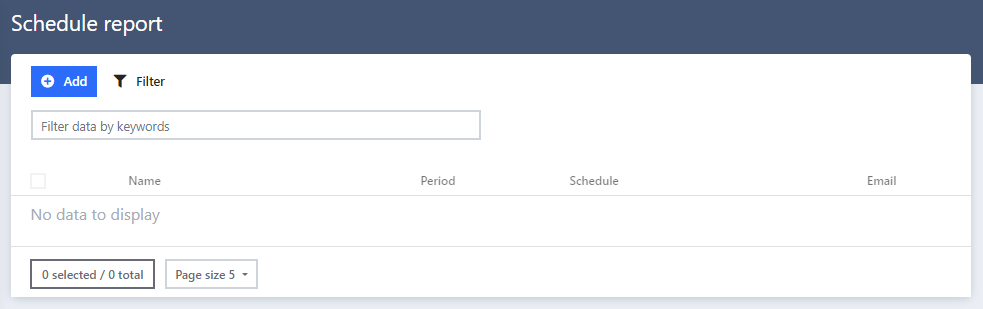
Add scheduled report button
You must provide the following information in order to create the scheduled report:
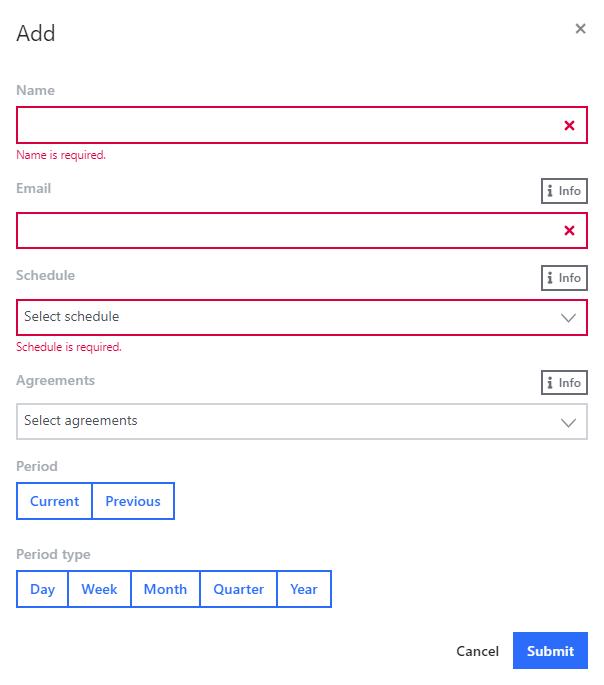
Add scheduled report
Setting |
Description |
Name |
Enter a name for the report. |
Enter the email address that the report will be sent to. Separate multiple addresses with a comma.
|
|
Schedule |
Select a schedule. |
Agreements |
Select the SLAs to include in the report. If you leave the box empty, it will generate reports for all SLAs. |
Period |
Define the period for which to generate the report: ▪Current ▪Previous |
Period type |
Select a period type: ▪Day: Generate a report for each day of the selected schedule. ▪Week: Generate a report for each week of the selected schedule. The first day of the week can be set as desired. ▪Month: Generate a report for each month of the selected schedule. The first day in the report can be set to any day in the month (ex: from the 5th of the month to the 4th of next month). ▪Quarter: Generate a report for each quarter of the selected schedule. ▪Year: Generate a report for each year. It can be set to start at the beginning of the year (01.01 – 31.12) or in the middle of the year (01.07 – 30.06). |

