
PRTG Manual: Installation
1. Run the installer that you downloaded and click Next.
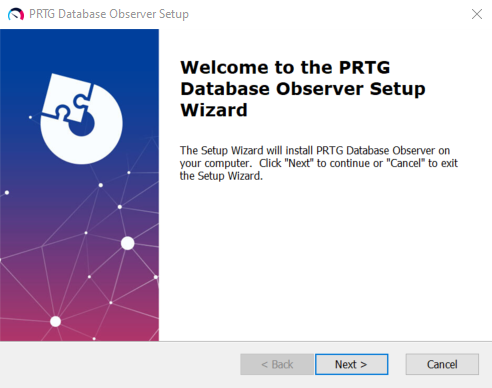
Start setup wizard
2. The second window contains information about prerequisites.
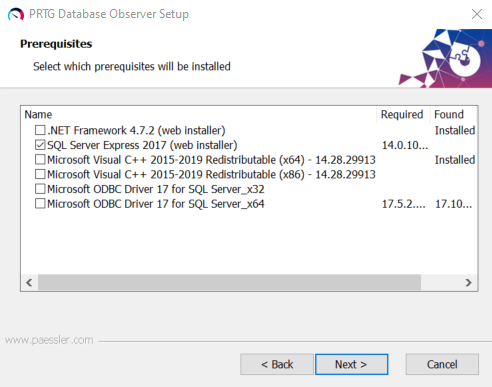
Prerequisite list
The prerequisites list displays all possible drivers that PRTG Database Observer requires to run properly. If a required driver is not detected by the installer, it is automatically selected to be installed. Select any additional drivers you need.
 If you already have a SQL instance available where you want to place this database, you do not need to install SQL Server Express. You can choose an existing SQL in the Configure SQL Server Connection window in a later step.
If you want to connect to a SQL server configured with hardened SSL/TLS options, you must install Microsoft ODBC Driver 17 for SQL Server x64.
Once you have selected the prerequisites you want to install, click Next.
1.Select I accept the terms in the License Agreement and click Next.
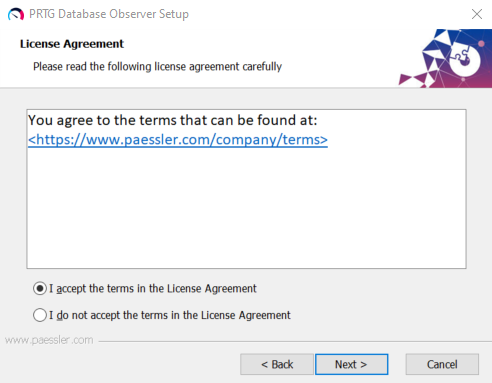
PRTG Database Observer license agreement
2.On the Settings Dialog window, specify the SQL server you want to monitor, enter the required credentials, and click Next.
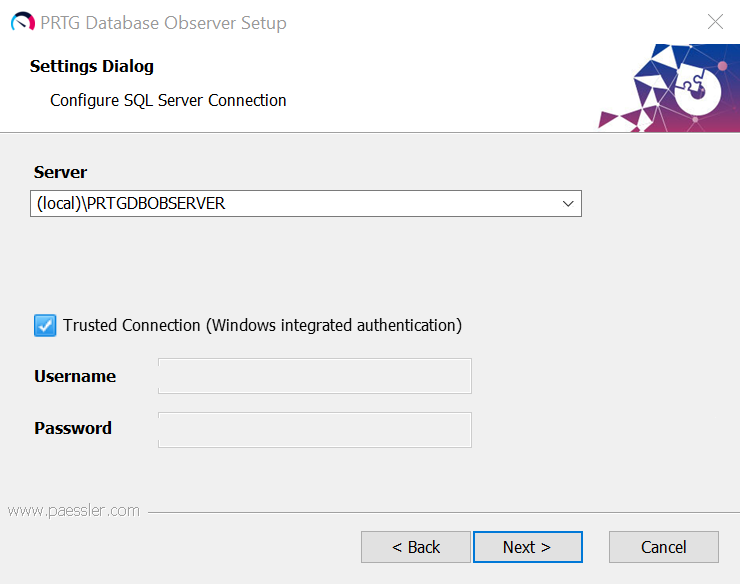
PRTG Database Observer configure SQL server connection
Setting |
Description |
|---|---|
Server |
Specify the SQL server and instance you want to connect to. You can select local SQL installations found on PRTG Database Observer from the dropdown menu. Otherwise, configure the corresponding remote SQL server. |
Trusted Connection (Windows integrated authentication) |
Enable the checkbox to determine usage of a current user domain account or SQL authentication using a specific account. |
Username |
Enter the username PRTG Database Observer uses to connect to the database. |
Password |
Enter the password PRTG Database Observer uses to connect to the database. |
3.If the installation is successful, the setup wizard displays a confirmation message. Click Finish to close the installer.
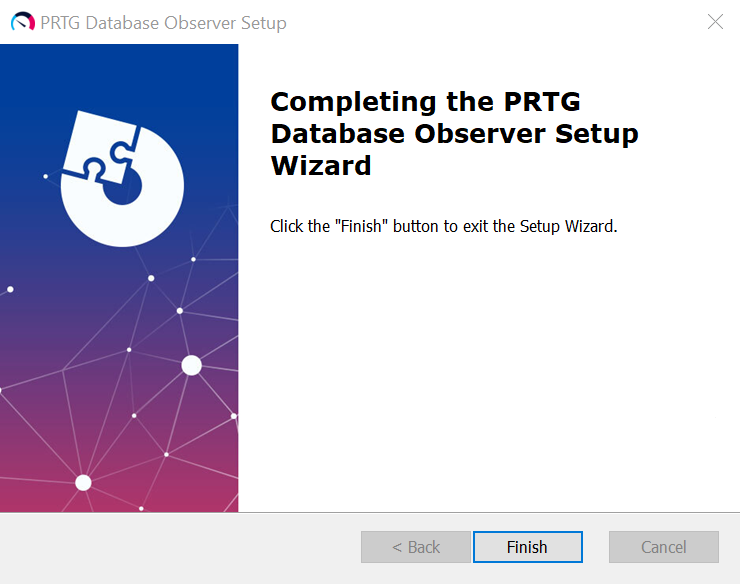
PRTG Database Observer installation complete
