
PRTG Manual: Adding a custom sensor in PRTG
Use the PRTG web interface to add a custom sensor in PRTG.
 You must be an administrator or have read-write privileges to create a sensor in PRTG.
Step 1. Create a new sensor
You can add a sensor in many ways:
1.From the device tree: Click Add Sensor under a device.

Add sensor from device tree
2.From a device's context menu: Right-click the device that you want to create a new sensor on and click Add Sensor.
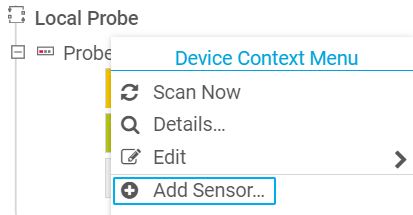
Add sensor from context menu
3.From the device page: Click  and click Add Sensor or click
  under the device overview.
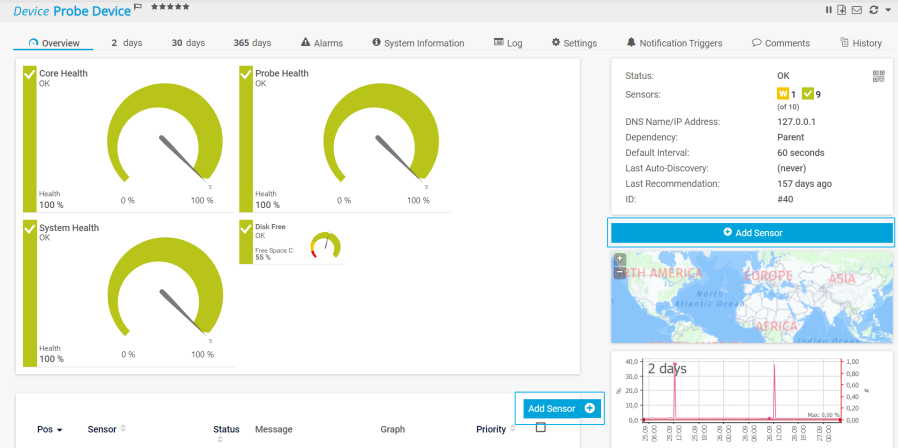
Add sensor from device menu
4.From the main menu: Hover over the Sensors tab and click Add Sensor.

Add sensor from main menu
Step 2: Configure the sensor
1.On the sensor creation page, search for the necessary sensor type you want to create. In this case, you will need the EXE/Script Advanced sensor.
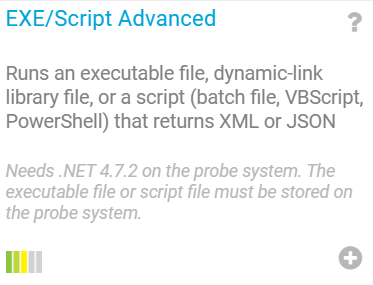
EXE/Script Advanced sensor
2.On the sensor creation page, configure the sensor to work with your database.
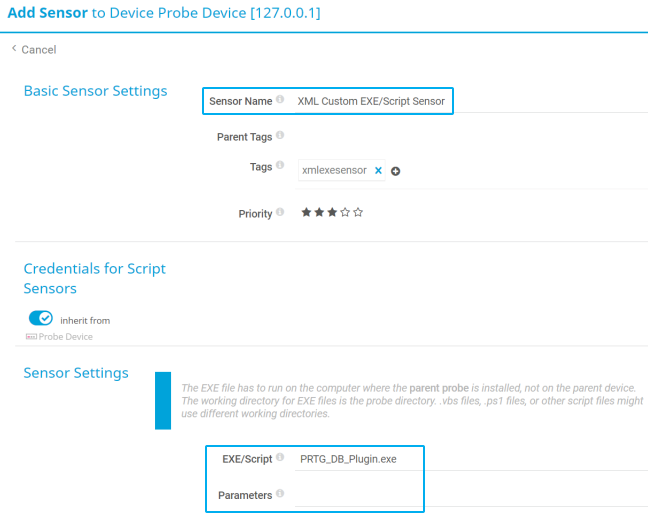
Configure sensor settings
The following fields are mandatory:
Setting |
Description |
|---|---|
Sensor Name |
Enter a unique name for the database. |
EXE/Script |
Select PRTG_DB_Plugin.exe. |
Parameters |
Use parameters generated by PRTG Database Observer UI or, if you don’t have a profile created, use full set of parameters as documented within the PRTG_DB_Plugin.exe console application. |
3.Click Create.
Repeat this process for every database you want to monitor.
Step 3: Review the sensor
After sensor creation, you are automatically redirected to the device page of the created sensor. Click on the sensor and review the channels and settings to ensure that it is configured as desired.
 The sensor channels may take a moment to appear and be populated while PRTG retrieves data from the database.
