
PRTG Manual: Home
In the Home section, the following actions are possible:
▪Add or edit profiles and queries.
▪Generate sensor parameters -profile:Profile Name or -query:Query Name that can be used to create a sensor in PRTG.
▪Execute a query to see its XML representation directly in the UI for testing and debugging purposes.
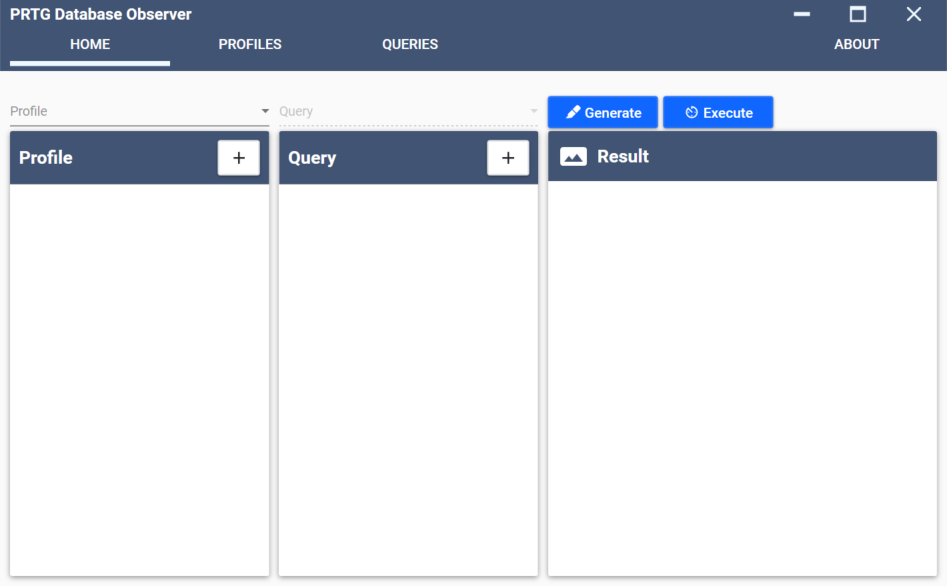
Home tab
There are three panels on this page:
Click in the profile panel to add a profile.
 in the profile panel to add a profile.
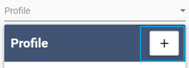
Fill in all the relevant details and click Save.
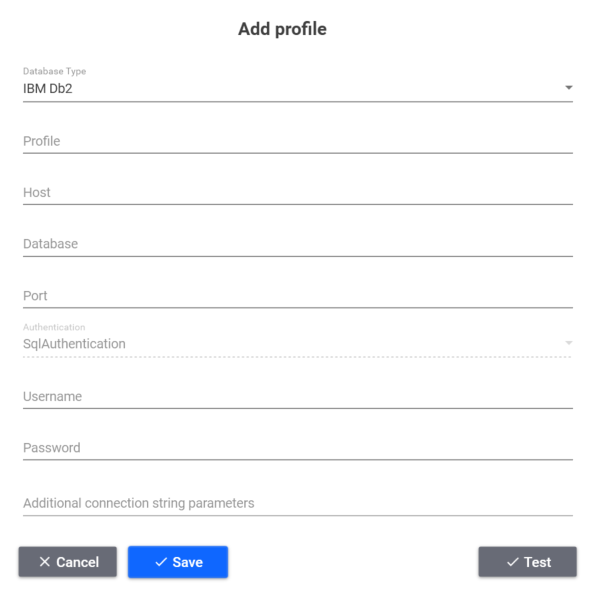
Add profile
Setting |
Description |
|---|---|
Database Type |
Specify the database (DB) Type from the dropdown menu. |
Profile |
This field is mandatory. Enter the name of the profile.
|
Host |
This field is mandatory. Enter the hostname, IP address, or SQL Server name. |
Database |
This field is mandatory.for the following database types: IBM DB2, Oracle, and SAP Hana. Enter the name of the database. |
Port |
Enter the port of the database.
▪MySQL: 3306 ▪Oracle: 1521 ▪IBM DB2: 5000 |
Authentication |
Select the authentication type for the chosen database type: ▪SQL Authentication ▪Windows Authentication
|
Username |
This field is mandatory if you select Windows Authentication above. Enter the user name of the Windows credentials.
|
Password |
This field is mandatory if you select Windows Authentication above. Enter the password of the Windows credentials.
|
Encrypted |
This field is only mandatory for SAP ASE databases. Specify whether the connection is encrypted or not. |
Additional connection string parameters |
Specify any custom connection string parameters. Use this when your database has a special configuration and requires special connection parameters or when a normal connection from PRTG Database Observer does not work. Parameters can be written using a key-value pair, connected with an equal sign (=). Separate multiple parameters with a semi-colon (;). Example: Use OldGuids=true; when your MySQL database is configured with skip-character-setclient-handshake.
|
Test |
Test the profile configuration. |
 The profile name
To edit a profile, select the profile from the dropdown menu above the profile panel and click  .
.
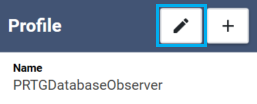
Edit profile
There are two ways to add a query to your profile.
1. Add a new query
Click in the query panel to add a query.
Fill all required parameters and confirm it with clicking Save:
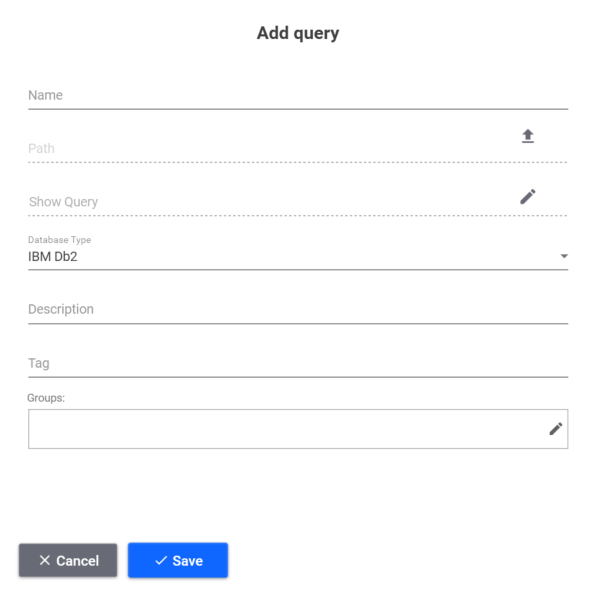
Add query
Setting |
Description |
|---|---|
Name |
This field is mandatory. Enter the name of the query
|
Path |
Enter the path of the query.
|
Show Query |
This field is mandatory. Write a new query using the pencil icon. |
Database Type |
Select a database type from the dropdown menu. |
Description |
Enter a short description of the query. |
Tags |
Enter tags that are associated with the query. You can use these to filter your queries. |
Groups |
Add the query to a query group. |

2. Choose an existing query
If you want to choose a query, you must select a profile first. Only queries matching the database management system (DBMS) profile type will be available.
For most cases, you can utilize predefined SQL queries by selecting them from the dropdown menu.
To edit a query, select the query from the dropdown menu above the query panel and click .
Edit query
Select a profile and a query from the respective dropdown menus and click Generate to generate parameters that can be used with a custom PRTG sensor.
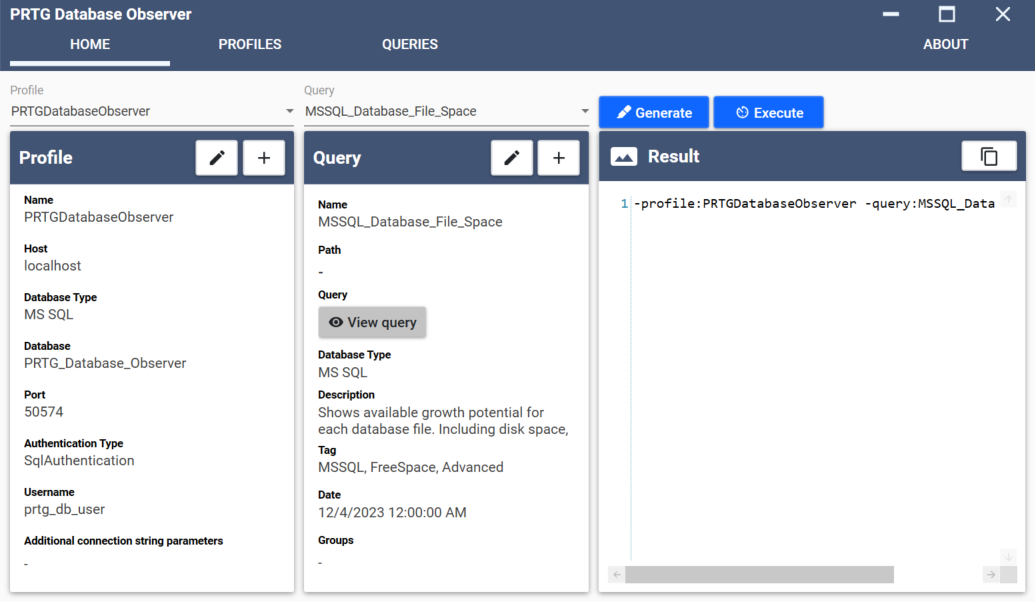
Generate query
Select a profile and a query from the respective dropdown menus and click Execute to run the query. The result is an XML formatted data prepared for PRTG processing. Use this to test and troubleshoot your queries.
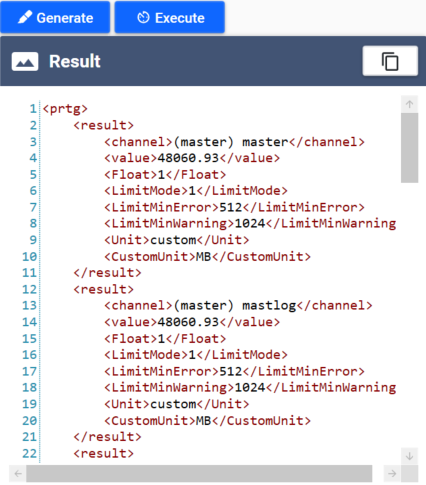
Execute query
 For more information about query design, see section Queries.
