
PRTG Manual: Step 6: Install Paessler PRTG MultiBoard
 You can find a comprehensive guide to PRTG MultiBoard in the PRTG MultiBoard & PRTG app for desktop manual.
Paessler PRTG MultiBoard is a native, cross-platform application that enables fast access to all of your PRTG servers, including PRTG Network Monitor and PRTG Hosted Monitor instances. With PRTG MultiBoard you can configure your setup, view monitoring results, and keep an eye on your network.
As a PRTG Enterprise Monitor user, you also have access to PRTG MultiBoard features, which has extended features, including the multiboard and probe transfer.
 For more information, see sections 4: General features and 5: PRTG MultiBoard in the PRTG MultiBoard & PRTG app for desktop manual.
PRTG MultiBoard natively includes most PRTG functions. For a few options, PRTG MultiBoard opens an external browser window using your default browser, for example, for system setup.
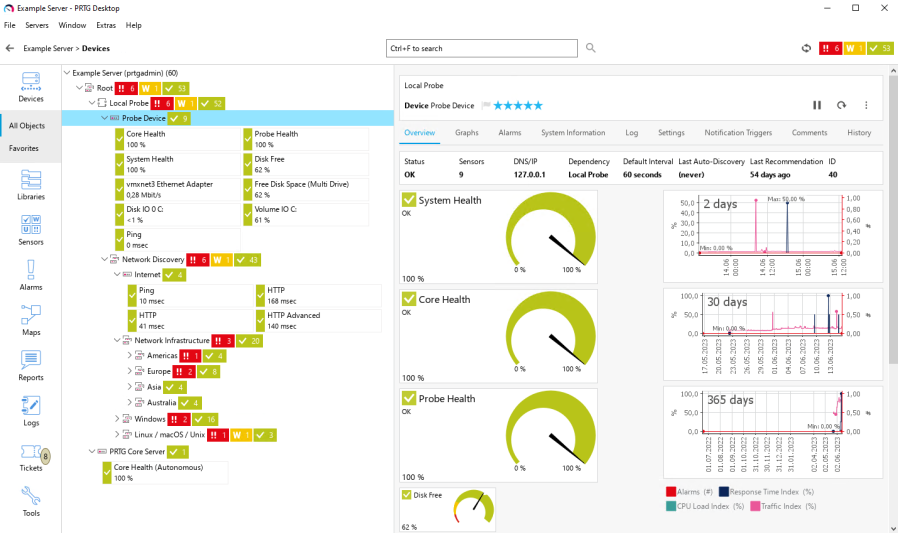
PRTG MultiBoard device tree
System Requirements
To install and use PRTG MultiBoard, you must have the following:
▪Administration rights
▪A local system running a supported operating system
▪A viable internet connection
▪A PRTG core server running as of PRTG 17.4.35 and open to connections
For more information, see section 2.1: System Requirements in the PRTG MultiBoard & PRTG app for desktop manual.
Install PRTG MultiBoard on Windows
Before you can activate and use PRTG MultiBoard, you must first install the application.
1.Download the PRTG MultiBoard installer from the Paessler website.
2.Execute the setup program that you downloaded.
3.Click Install to accept the terms and conditions and begin the installation.
The application is automatically installed under C:\Program Files\Paessler\PRTG Desktop. Click Change Path to select a different folder. We recommend that you use the default path.
If asked, confirm the question of the Windows User Account Control with Yes to allow the program to install.
4.After installation, click Launch to open the application and configure your first PRTG server connection.
5.Click Connect to my server to continue. Optionally, you can try the demo server.
6.Enter the connection settings for one of your PRTG servers and click Save to connect. To begin, you will only be adding one PRTG core server or PRTG Hosted Monitor instance. After installation, you can add more servers in File | Settings | Accounts.
For more information, see section Step 7: Connect your PRTG servers with PRTG MultiBoard.
7.Click Yes to continue.
8.The installer will show a few tips on how to use the application. Click Next to continue for the next few screens.
9.On the last screen, the installer will prompt you to enable the system tray to receive desktop notifications. Enable or disable the checkbox next to Enable the system tray to receive desktop notifications via the system tray or to deactivate notifications. This setting can be changed after installation.
10.Click Done to finish.
Activate PRTG MultiBoard
Once you have installed the application, you can activate PRTG MultiBoard. You will need the PRTG MultiBoard License Key you received via email.
The PRTG MultiBoard license key is different from your PRTG license key.
1.In the application, navigate to File | Settings | License Info and click Activate to continue.
2.Enter your license key to activate PRTG MultiBoard.
3.Restart the application to enable the PRTG MultiBoard features.
For more information, see section 6.6 License Info in the PRTG MultiBoard & PRTG app for desktop manual.
General features
Device tree management |
▪Move or clone objects in the device tree using drag-and-drop. ▪Copy and cut objects to the clipboard using standard keyboard shortcuts Ctrl+C and Ctrl+X. ▪Paste objects to the clipboard using standard keyboard shortcut Ctrl+V. |
Multi-edit |
▪Select multiple objects in the device tree to bulk edit settings or to apply context menu functions to all selected objects at once. ▪View data of the first five selected objects, for example index graphs. |
Alerting |
▪Enable the tray icon, taskbar notifications, or notification sounds to keep you up to date in the case of new Alarms, Log Entries, or Tickets. |
For more information, see section 4: General features in the PRTG MultiBoard & PRTG app for desktop manual.
PRTG MultiBoard features
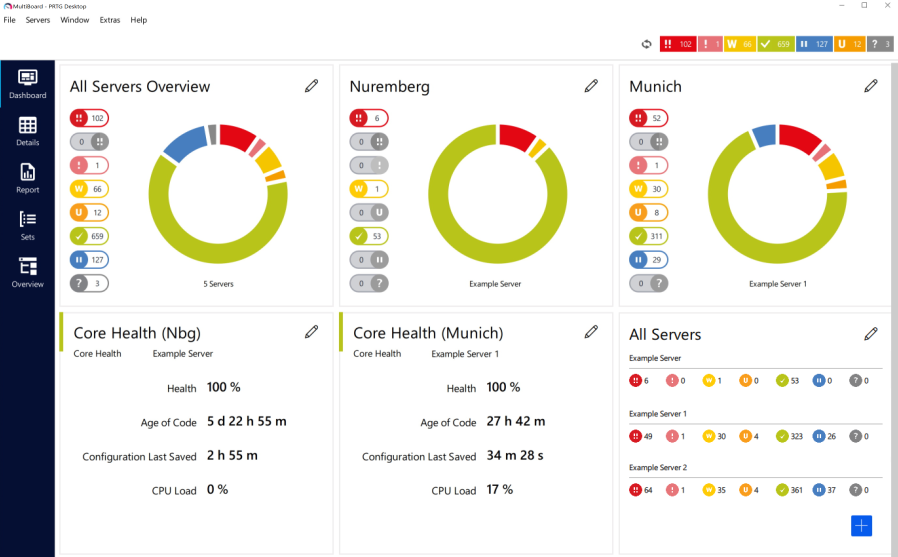
PRTG MultiBoard Multi Server dashboard
MultiBoard |
▪Configure access to all your PRTG servers in PRTG Desktop. ▪View the device trees and data of all your PRTG servers at a glance. ▪Create customized dashboards. ▪Group sensors into customized sensor sets across all your PRTG servers. |
Probe Transfer |
▪Clone remote probes from one PRTG server to another without losing historic data. |
Template Transfer |
▪Copy and share custom device templates for sensors to other PRTG servers. |
Configuration Viewer |
▪Compare PRTG Configuration.dat files between PRTG servers. |
For more information, see section 5: PRTG MultiBoard in the PRTG MultiBoard & PRTG app for desktop manual.
