
PRTG Manual: Step 4: Add a user account to your PRTG installation
To add a dedicated user account to your PRTG installations, follow the steps given below:
1. Log in to the PRTG web interface as an administrator user. The default login name and password for the PRTG System Administrator user are prtgadmin and prtgadmin.
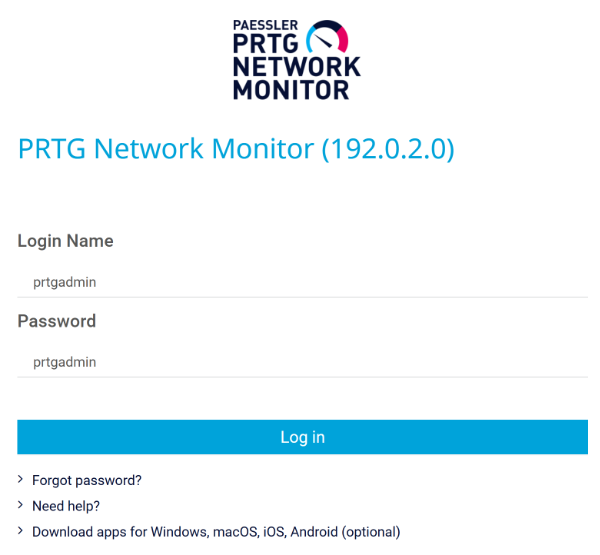
Login screen
2. Select Setup | System Administration | User Accounts from the main menu bar.
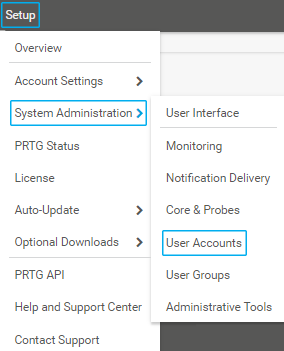
Navigate to User Accounts
3. Hover over  and select Add User from the dropdown menu.
4. Enter a Login Name for the new user, and a Display Name.
5. Enter a primary email address and a password for the new user.
6. For Account Type, select Read/write user.
7. Select the PRTG Administrators group from the dropdown list as the user's primary group.
Note: This is necessary because the new user needs to be an administrator user. You can also select any other user group with administrative rights.
8. Set all other options as you require them.
9. Click Create to add the new user account to PRTG.
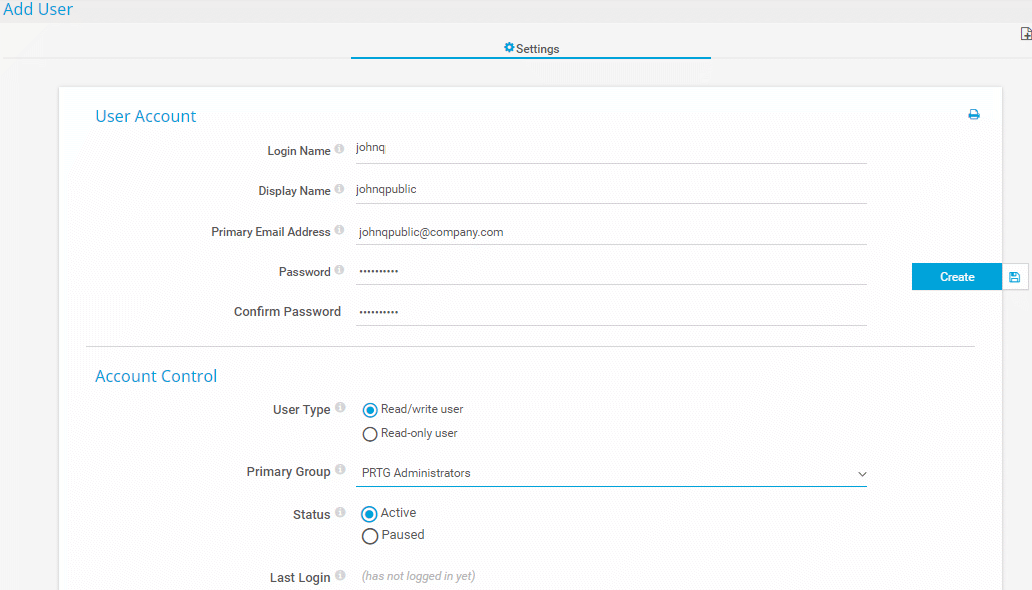
Add a dedicated user
For more information on how to manage user accounts in PRTG, see the PRTG Manual: User Accounts and User Groups.
