
PRTG Manual: Step 2: Install a PRTG server
Installing a PRTG server works like other Windows-based applications. To install a PRTG server, run the installation setup program prtg_installer.exe from the .zip file that you downloaded.
 The activation of a Paessler PRTG Enterprise Monitor subscription license requires as of PRTG 21.4.73.
1.Confirm the question of the Windows User Account Control with Yes to allow PRTG to install. The installation dialog guides you through the installation process.
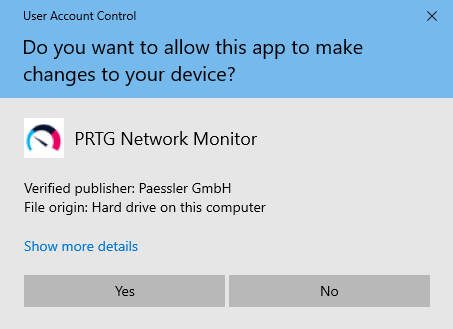
Windows User Account Control confirmation request
2.Select a language for the installation and click OK. The available language options depend on both your Windows version and the setup file.
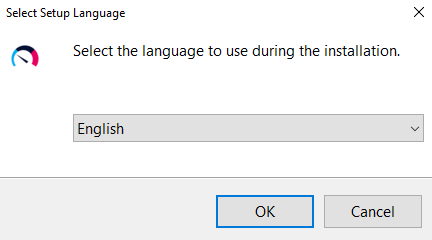
Select your setup language
3.Accept the license agreement and click Next.
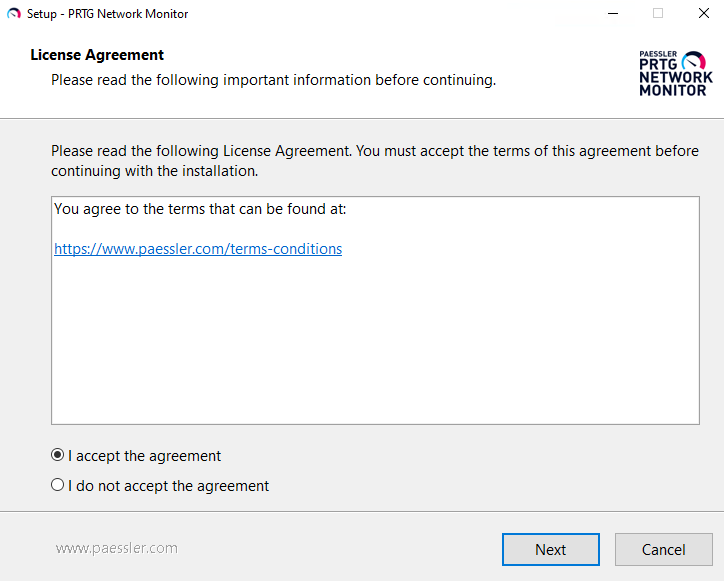
Setup: License Agreement
4.Enter your email address to make sure you receive important system alerts and click Next.
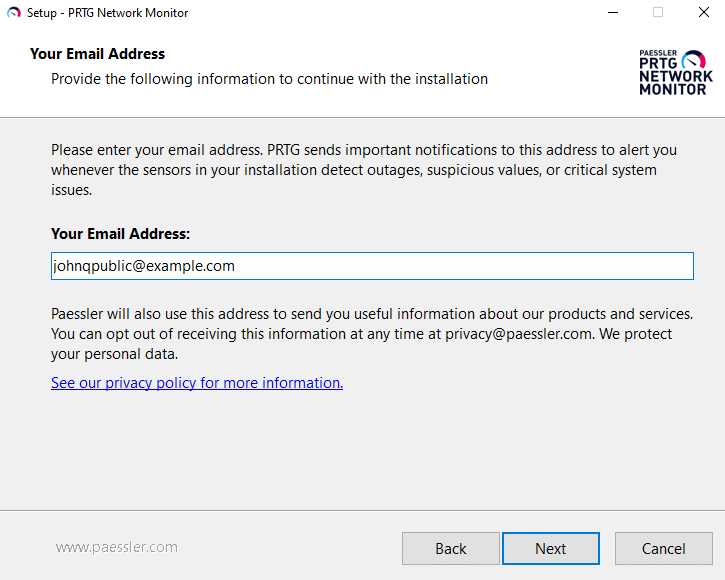
Setup: Your Email Address
5.Enter your license key and click Next. For more information about the activation of your license, see section Step 3.1: Activate your license.
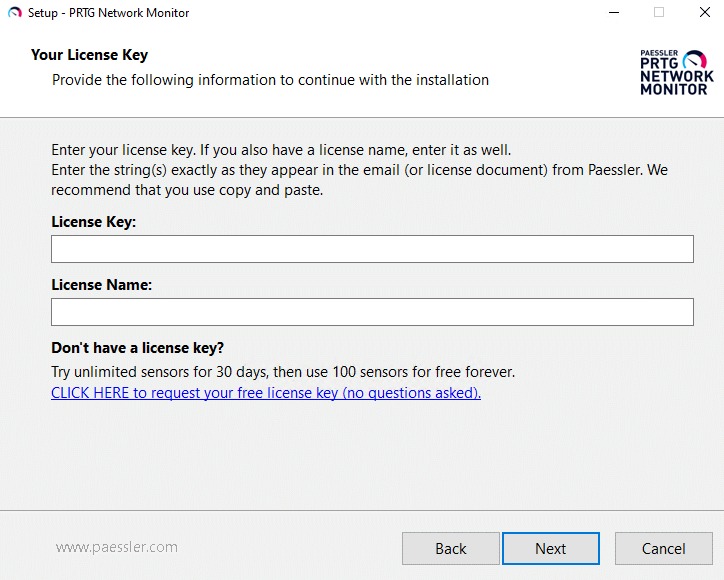
Setup: Your License Key
6.Select if you want to use the Express or the Custom installation mode and click Next. If you select the Express installation mode, you can directly proceed with step 9.
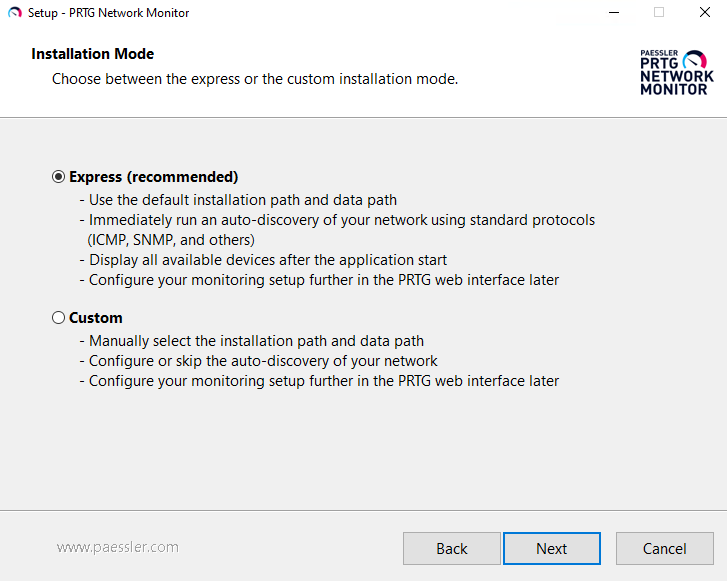
Setup: Installation Mode
7.This page is only visible if you use the Custom installation mode. You can change the paths to the PRTG program directory and PRTG data directory, if necessary. Click Next.
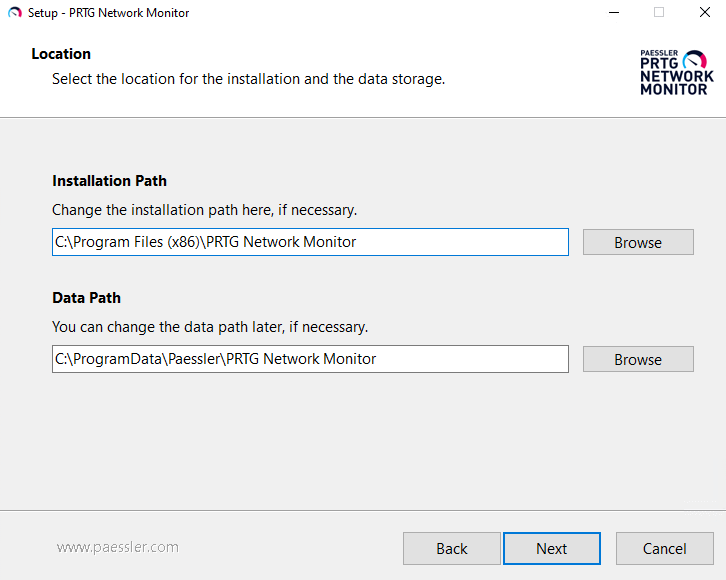
Setup: Location
8.This page is only visible if you use the Custom installation mode. Select if you want to run an auto-discovery of your network or if you want to skip the auto-discovery. This might be useful for performance reasons or if you prefer to manually add devices and sensors to your installation. Click Next.
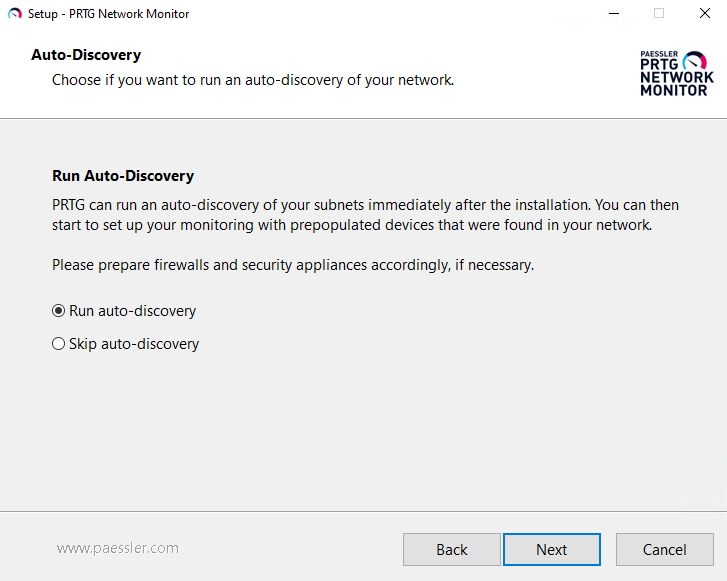
Setup: Auto-Discovery
9.This page is only visible if you select Run auto-discovery. You can enter a Simple Network Management Protocol (SNMP) community string. The default SNMP community string is public. Click Next.
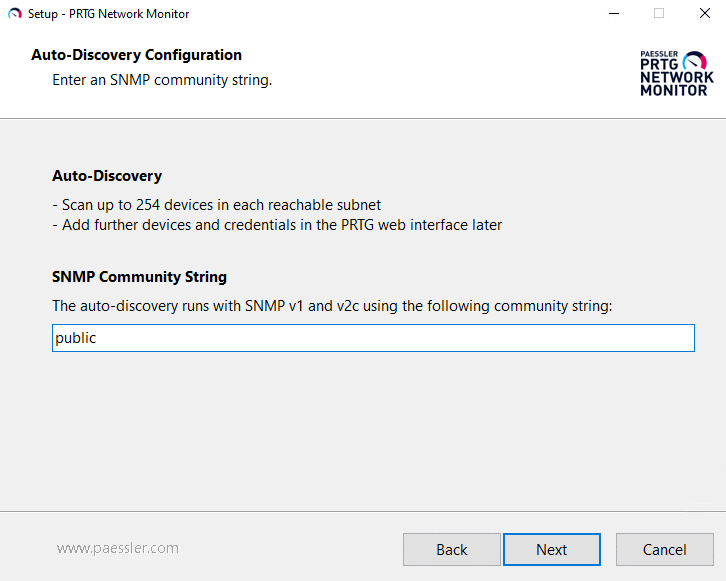
Setup: Auto-Discovery Configuration
10.PRTG is installed on your computer.
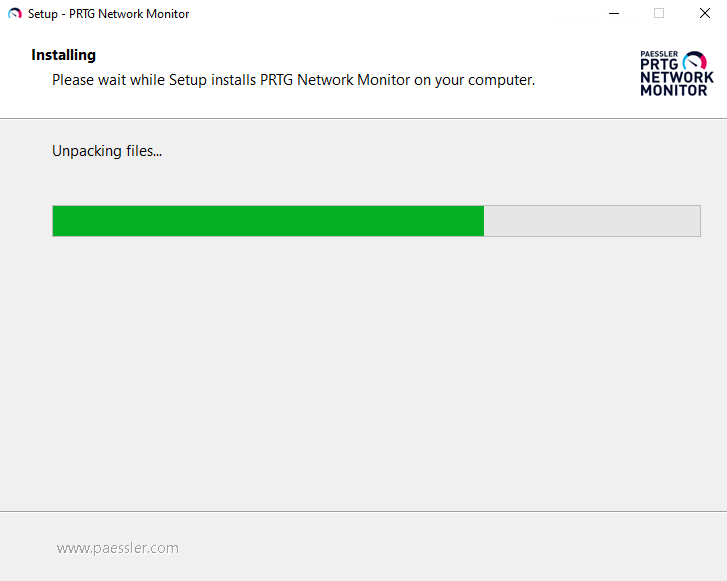
Setup: Installing
11.Click Finish to complete the setup of PRTG.
After installation, you can open the PRTG web interface in one of the supported browsers. For more information, see the PRTG Manual: System Requirements.
 In some cases, antivirus software like Windows Defender interferes with the PRTG installer. This might cause high CPU load on the PRTG server, which might prevent a successful installation. Temporarily disable Windows Defender and other antivirus software if you have issues installing PRTG.
During the install process, PRTG validates your license information by connecting to the activation server. You can activate your license automatically online or manually offline.
Online Activation
You received the License Key from Paessler via email. Copy the key and paste it when PRTG asks you to enter your license information in the setup dialog.
Paessler PRTG Enterprise Monitor subscription licenses do not have a License Name. The installer automatically grays out the License Name field if you enter a PRTG Enterprise Monitor subscription license key.
Setup: Your License Key
If you think that you have correctly entered your license key but get a License Invalid message, contact sales@paessler.com.
Offline Activation
If no internet connection is available, you must activate PRTG manually. For more information, see the Paessler website: How to use PRTG Enterprise Monitor in an offline environment in 5 steps.
